Check the prerequisites
Use Lightning Experience with Lightning Web Security enabled. An admin or developer needs package installation rights and access to Lightning App Builder. Confirm that standard Event records fit your use case.
Salesforce / Lightning + Apex / released 0.3.0.1
Put a real calendar on your Lightning pages, beside the customer and record context your team already uses. Standard Salesforce Events, an adaptable interface, and access enforced in Apex.
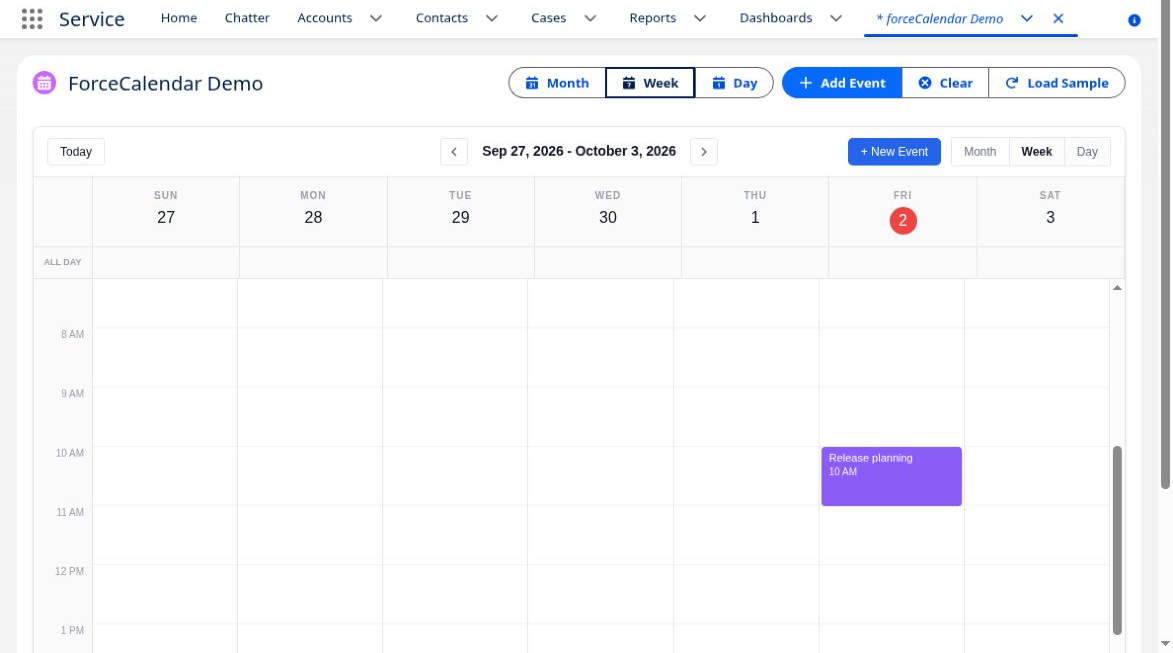
Create, read, edit, delete, and navigate accessible Salesforce Event records. Record-page context follows supported Event relationships.
The LWC loads Core and Interface from a static resource. Calendar assets do not need a runtime CDN.
Sharing and user-mode access apply in Apex. Configure permissions intentionally and test representative users before rollout.
The integration, end to end
The calendar is the interface. Salesforce remains the record system.
Your records, relationships, sharing, and org rules.
Queries and writes with sharing and user-mode CRUD/FLS enforcement.
Loads the bundle, requests the visible range, and forwards changes.
Month, week, day, and event forms. The response returns through the same data boundary.
Lightning Web Security is required. Legacy Lightning Locker is not supported for the third-party custom elements used here. Official Salesforce guidance
From package to Lightning page
Released unlocked package 0.3.0.1 passed a clean install and 32 Apex test methods, with 98% package coverage. These checks do not replace validation in your own org.
Use Lightning Experience with Lightning Web Security enabled. An admin or developer needs package installation rights and access to Lightning App Builder. Confirm that standard Event records fit your use case.
Choose Install for Admins Only, then grant access to the intended users. Keep a record of the exact version you test.
Production installation is available. Complete your sandbox checks first. Package 0.3.0.1 freezes Core 2.5.6 and Interface 1.9.0; npm updates do not change that package.
Use disposable synthetic records with a representative non-admin user. Test create, edit, cancel, confirmed delete, reload, navigation, all-day dates, Record page relationships, read-only behavior, and denied access. Check your org’s validation rules and flows, then run the Apex tests.
Deploy the same version you validated, repeat page activation and permission assignments, and verify the production experience as an intended user.
Access is part of the integration
No permission set is assigned automatically. Read-only UI is a convenience; Apex and Salesforce permissions enforce data access.
Full permissions referencePermission sets are additive: Reader does not revoke permissions elsewhere. These sets do not grant related Account, Contact, or Lead access, Edit Tasks, View All, or Modify All. Access Activities applies beyond this calendar. Salesforce shares Description, WhoId, and WhatId permissions with Task; Subject, StartDateTime, and EndDateTime do not have independent configurable field permissions.
Configuration & boundaries
month / week / day. The initial view defaults to month.
800px by default. Choose an appropriate CSS height and test smaller screens.
Disables editing and dragging while preserving navigation and selection. Save callbacks are also blocked.
App and Home pages show accessible Events in the requested date range; this guide configures no owner-only filter. Record pages filter through WhoId or WhatId. Contact and Lead contexts use WhoId; supported related records use WhatId. Access to that object and record is still required. Related child records are not automatically included.
Native recurring Salesforce Events remain read-only here; manage series and occurrences in Salesforce Calendar. All-day events use inclusive civil dates. The query returns at most 1,000 records per requested date range. Tasks, custom-object calendars, and resource booking are not configured by this integration guide.
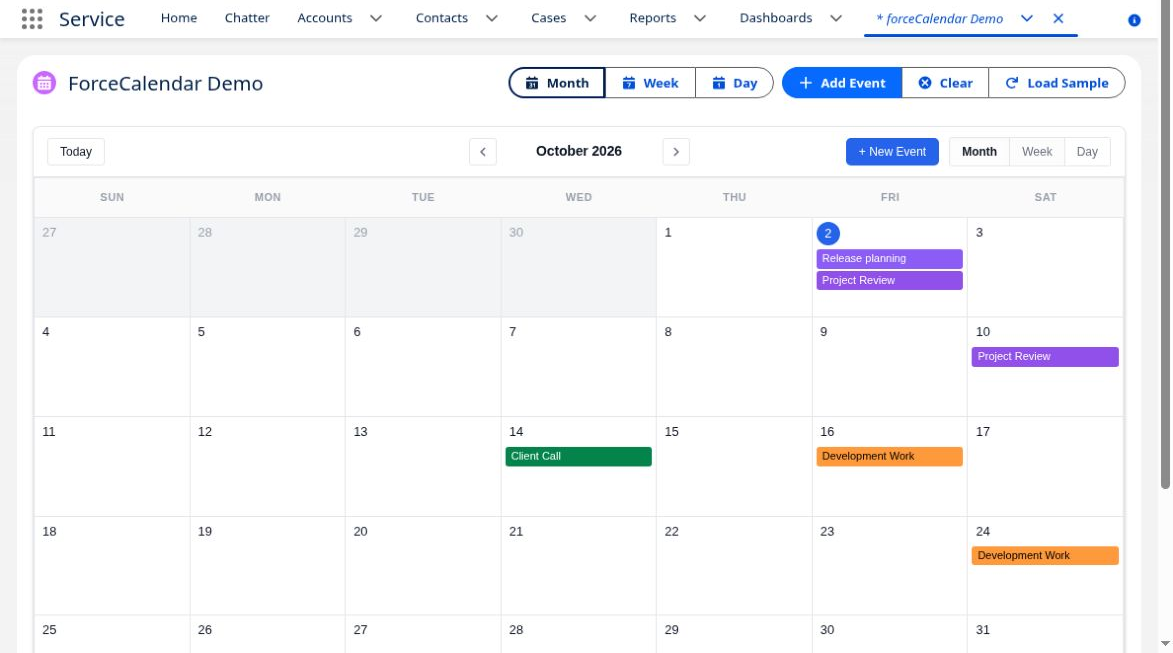
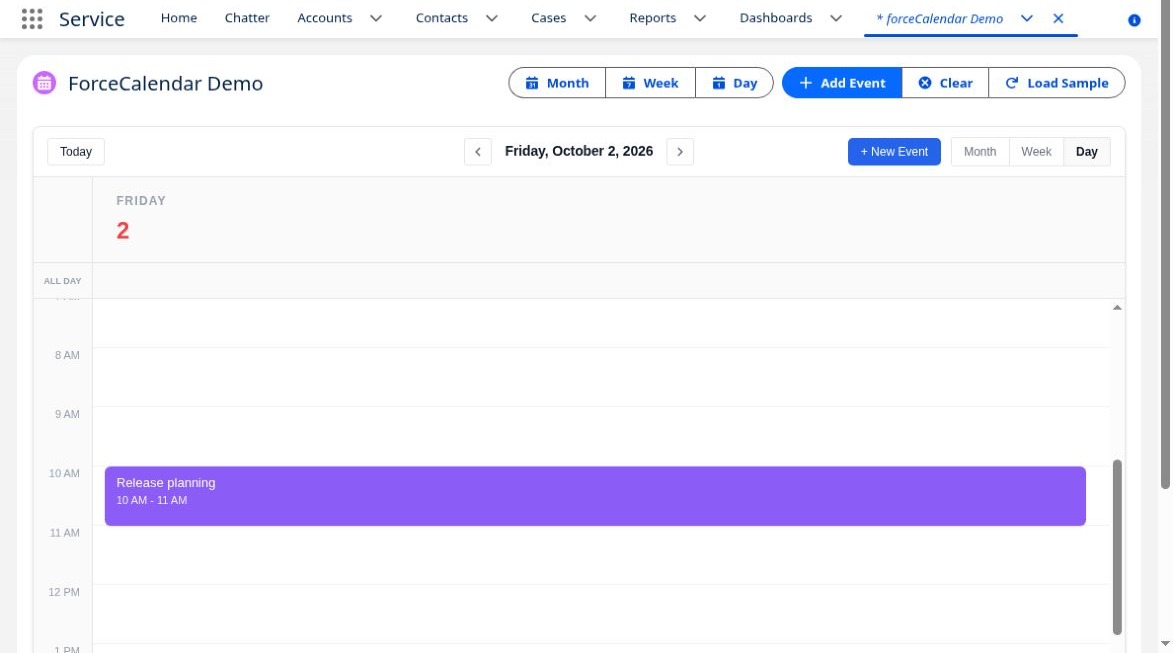
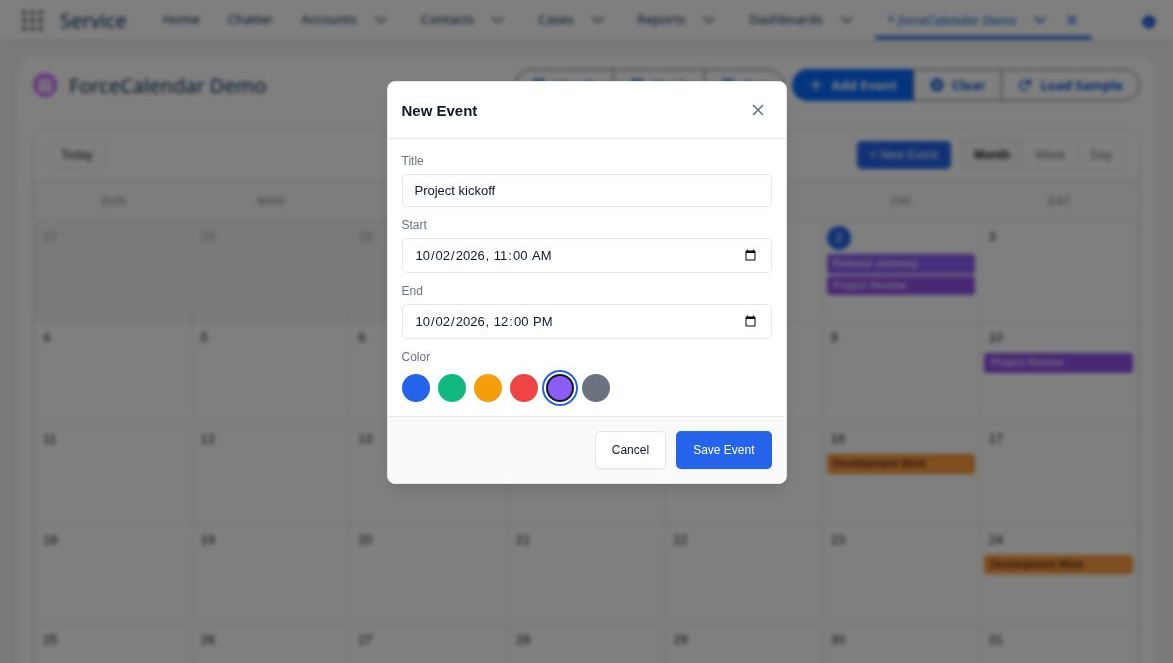
The production LWC was tested against actual Salesforce Events using disposable synthetic fixtures, including editing, confirmed deletion, refresh, navigation, and inclusive all-day dates. Restricted-user behavior has isolated Apex tests; an actual restricted-user Lightning session has not been tested. The screenshots below show an earlier synthetic demo capture, not the installation or permission tests.
Alternative / deploy from source
Deploy the LWC, Apex controller, and static resource together. Build dependencies live in both the repository root and src directory.
Use an authenticated sandbox alias. A source checkout and its resolved dependencies can differ from the released package.
git clone https://github.com/forcecalendar/salesforce.git
cd salesforce
npm ci
cd src
npm ci
cd ..
npm run build
cd dist
sf project deploy start --source-dir force-app --target-org your-sandbox-alias
sf apex run test --class-names ForceCalendarControllerTest --target-org your-sandbox-alias --result-format human --wait 10
Genuine Lightning specimens
Core 2.5.5 · Interface 1.8.1 · October 2026 captures. Real Lightning pixels with synthetic sample data; they do not verify the current package or your org’s data access.
Explore before you integrate